Make ACARS your flight recorder.
ACARS should be connected before pushback and left running until shutdown. It records your route, block time, landing data, and report details for staff review.
 Virtual Airline Ops
Install, connect, track, and file Virtual2Skies flights with ACARS.
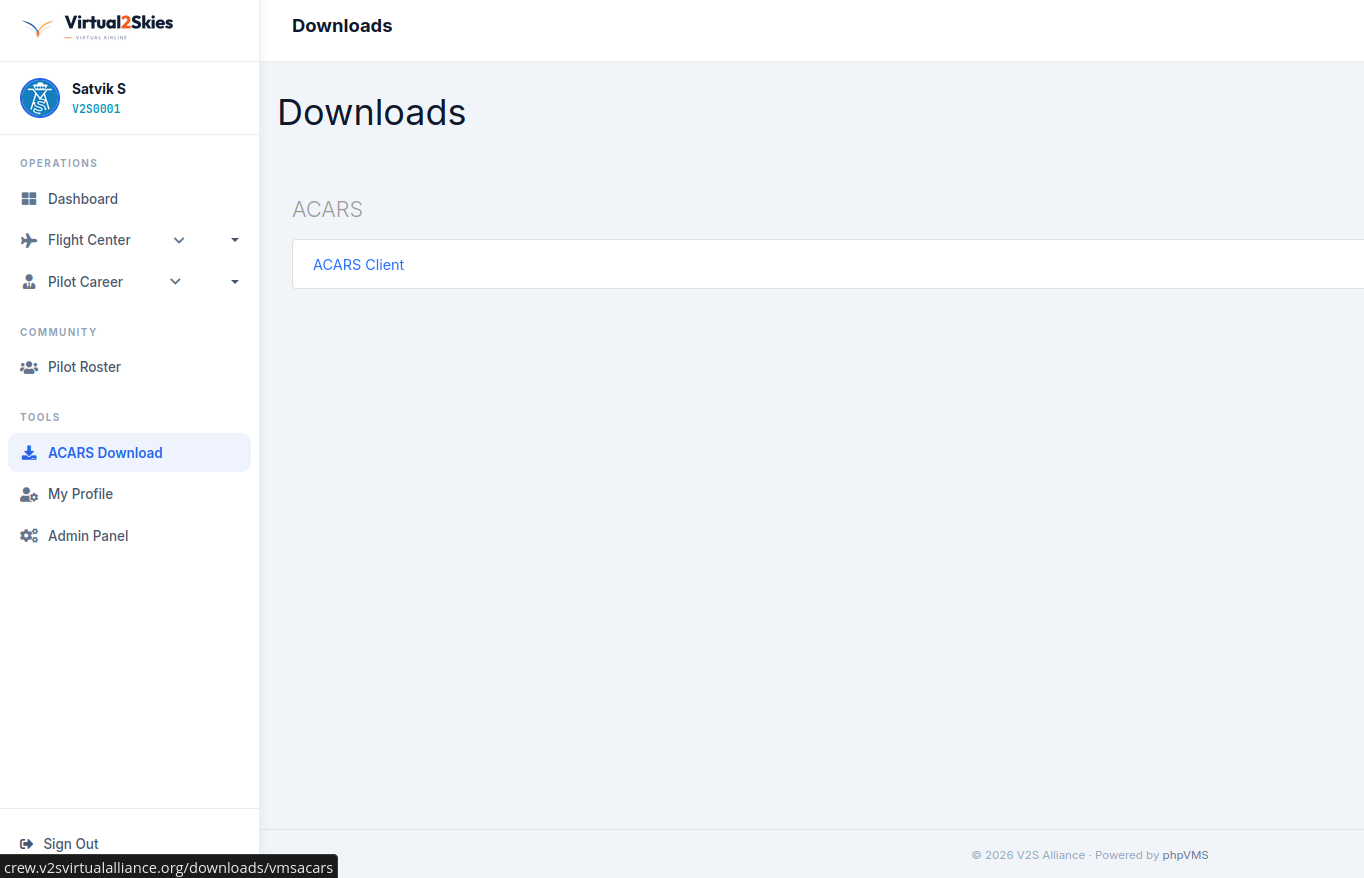
After signing in, use the left sidebar under Tools and select ACARS Download. On the Downloads page, click ACARS Client to download the approved tracker installer.
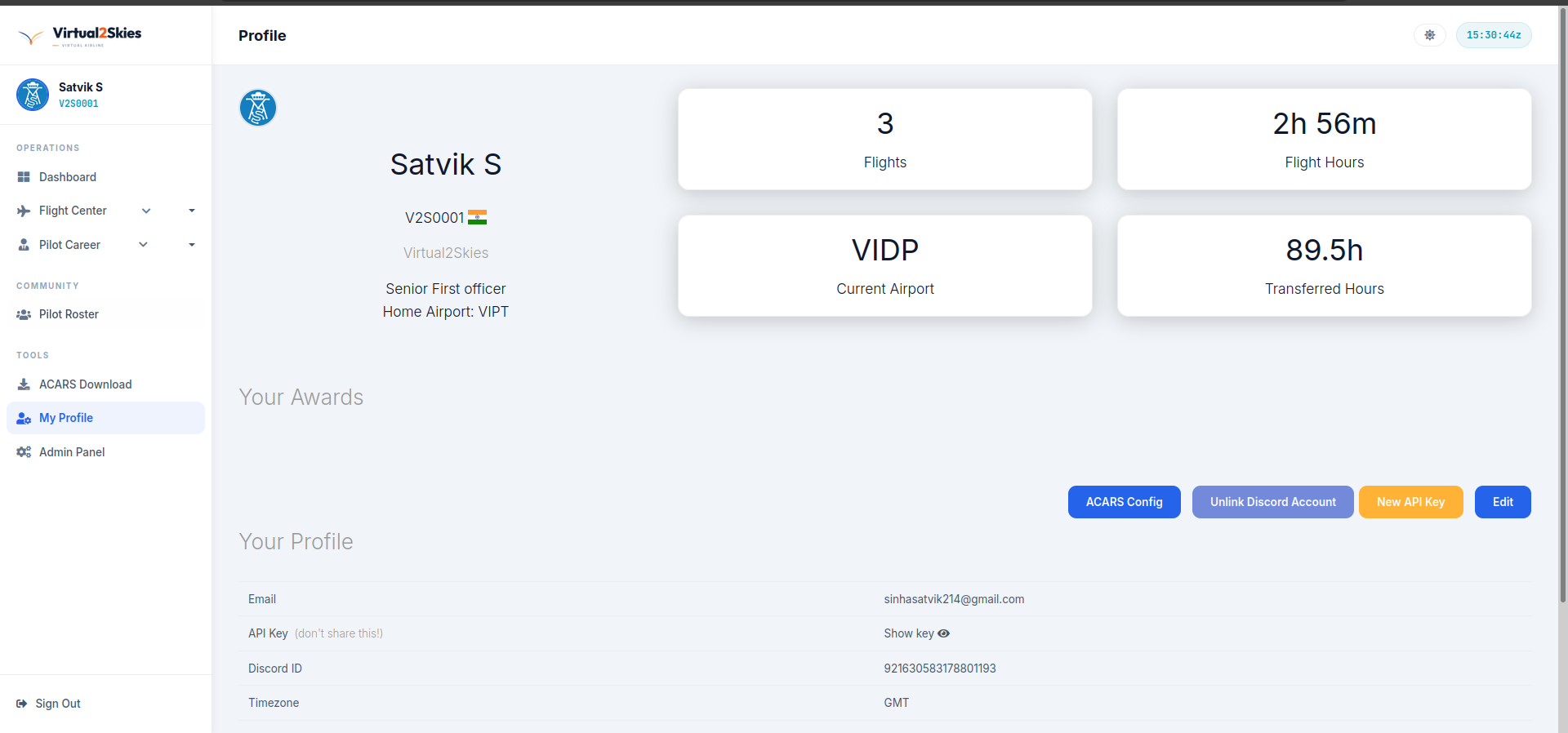
After the installer finishes, return to the pilot portal and open My Profile. Click ACARS Config, then place the downloaded config file inDocuments/vmsacars/profiles.
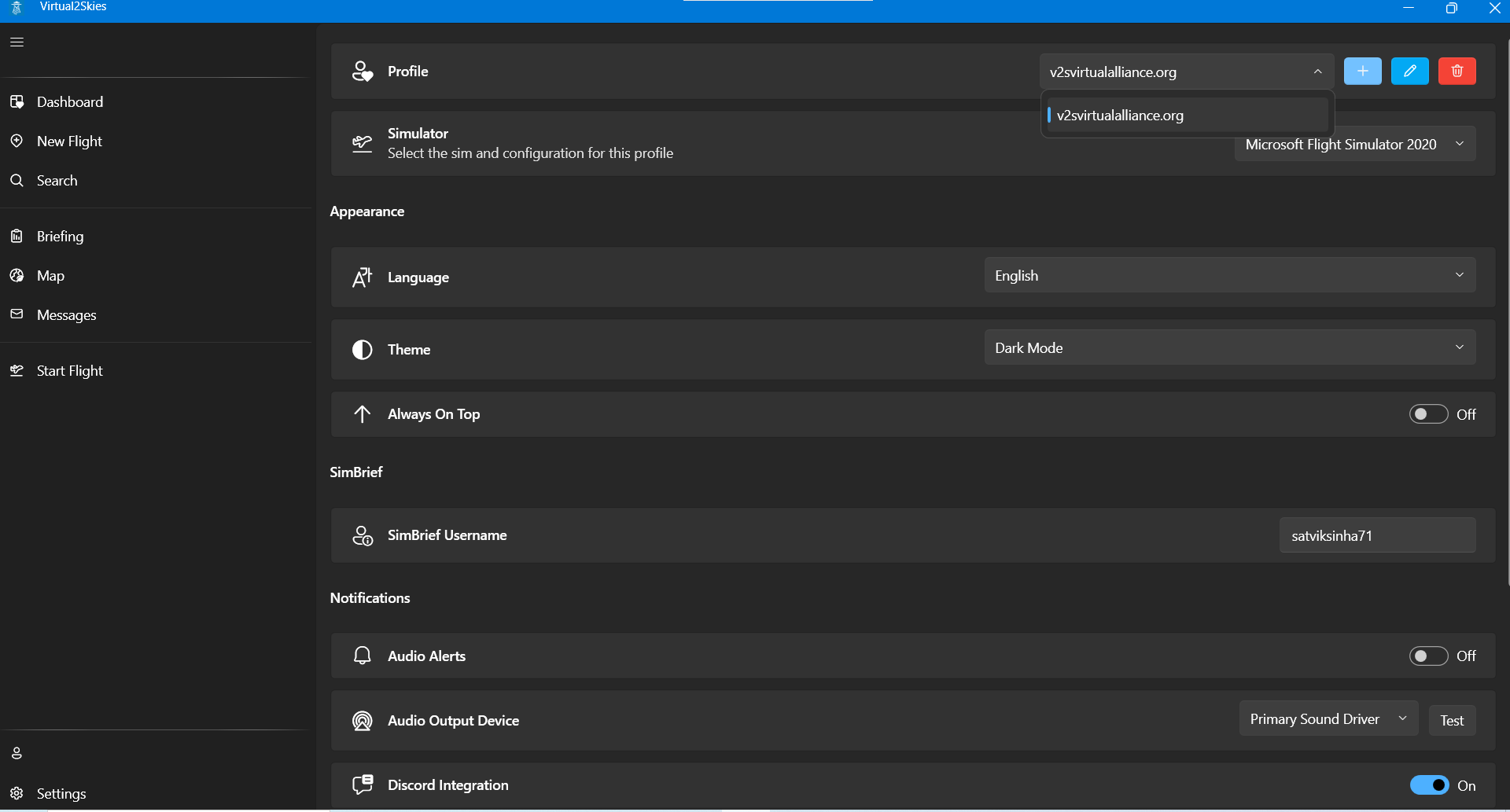
Open VMSACARS after copying the config file. If VMSACARS is already open, restart it first. Expand the sidebar, go to Settings, open the profile dropdown, and select the Virtual2Skies profile. In the same menu, select the simulator you will use for flying with the VA. This configures ACARS to report flight data to Virtual2Skies.
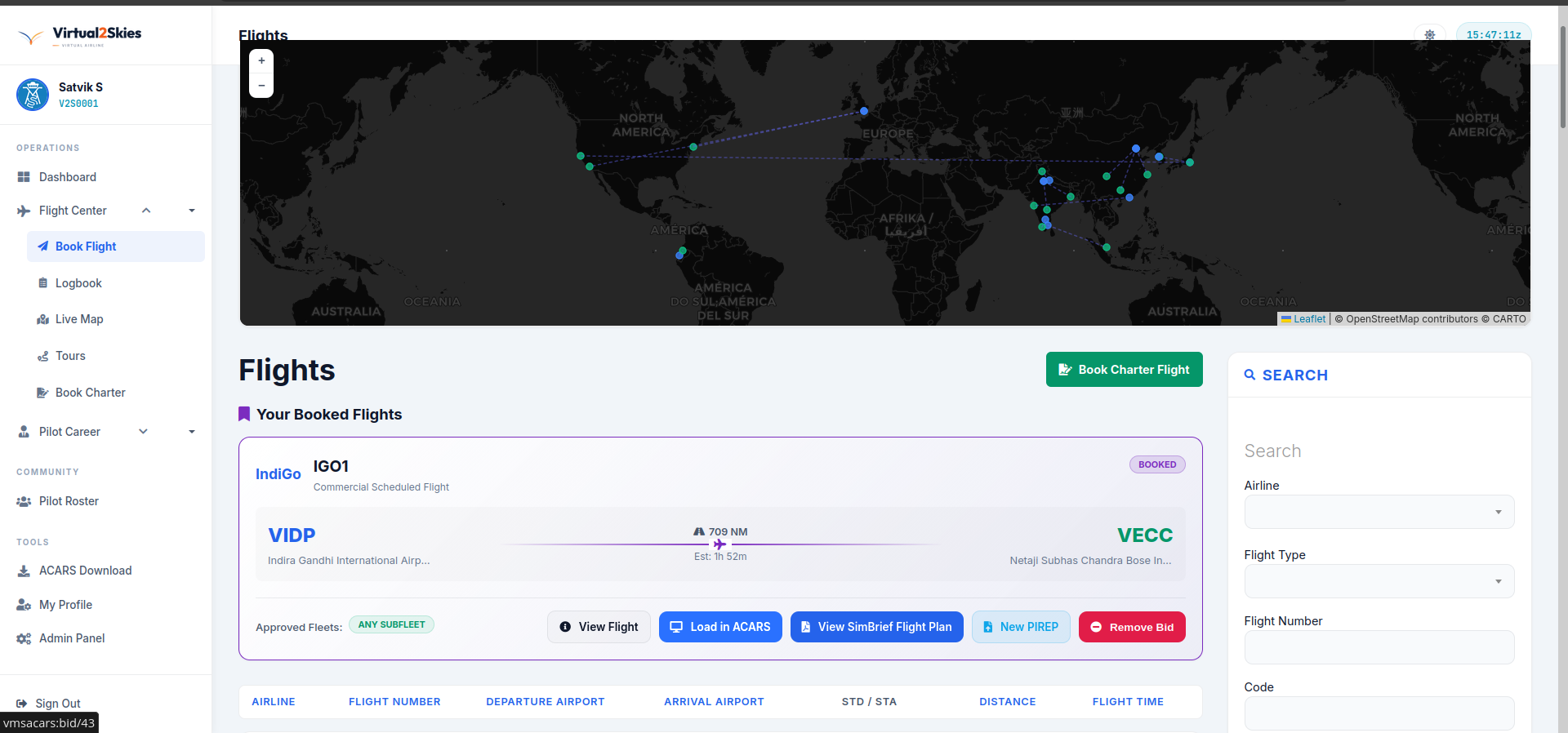
Head to the Book Flight menu in the pilot portal and select the schedule you want to fly. Click Load in ACARS, then choose Open Link on the browser popup. This loads the selected flight into VMSACARS.
Once the PIREP is submitted, the flight is logged with Virtual2Skies.
ACARS should be connected before pushback and left running until shutdown. It records your route, block time, landing data, and report details for staff review.
Confirm your booking, simulator connection, aircraft, and callsign before moving. If something looks wrong, fix it before taxi so the PIREP stays clean.
Restart ACARS as administrator, then reload the simulator connection.
Check pilot ID, password, and whether your portal account is active.
Refresh booked flights or dispatch the route again from the portal.
Save the log, screenshot the error, and contact support with the flight number.